
Browser Extension
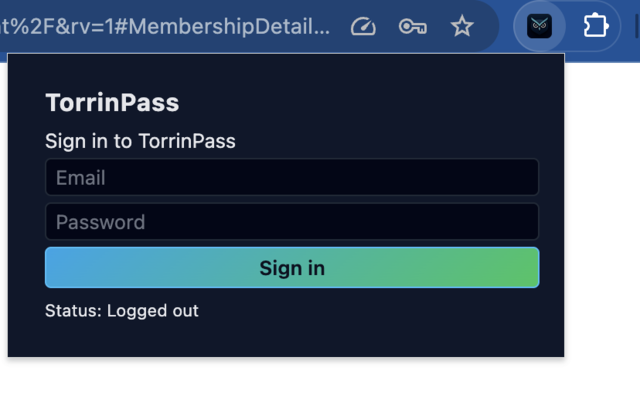
The TorrinPass browser extensions for Chrome and Firefox bring your secure password vault directly into your browser. Autofill passwords, generate new ones, and access your 2FA codes—all without leaving the webpage.
Key Features
Section titled “Key Features”🔐 One-Tap Autofill
Section titled “🔐 One-Tap Autofill”Fill login forms instantly with a single tap. The extension automatically detects login fields and suggests matching credentials.
🔑 Password Generator
Section titled “🔑 Password Generator”Create strong, unique passwords right in the browser:
- Customizable length and complexity
- One-tap to generate and save
- Automatically fills the password field
📱 2FA Code Access
Section titled “📱 2FA Code Access”Access your TOTP codes directly in the extension—no need to switch to the main app.
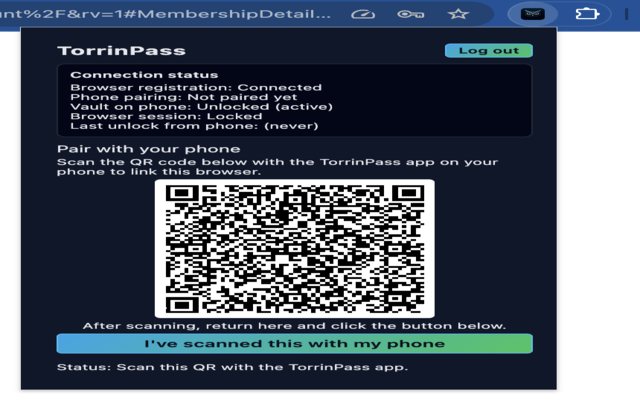
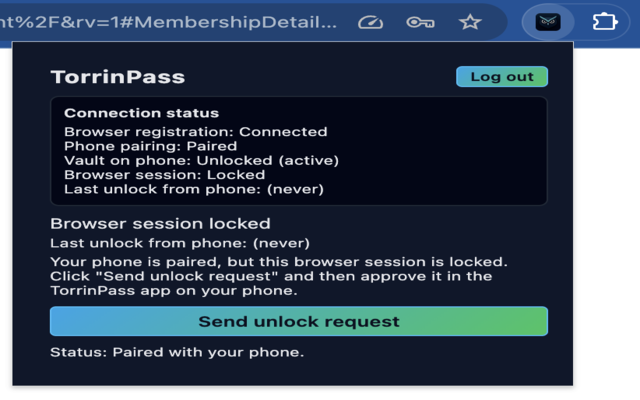
How It Works
Section titled “How It Works”Secure Communication
Section titled “Secure Communication”The browser extension communicates securely with your TorrinPass account:
- End-to-End Encryption — All data is encrypted before transmission
- Secure Sync — Credentials sync securely with your vault
- Same Encryption — Uses your Master Encryption Key (MEK)
Smart Matching
Section titled “Smart Matching”The extension intelligently matches websites to your saved credentials:
- Domain matching (e.g.,
login.example.commatchesexample.com) - Subdomain awareness
- Multiple credentials per site supported
Setting Up the Extension
Section titled “Setting Up the Extension”Chrome Installation
Section titled “Chrome Installation”- Visit the Chrome Web Store
- Search for TorrinPass and click Add to Chrome
- Click the puzzle icon and pin TorrinPass for easy access
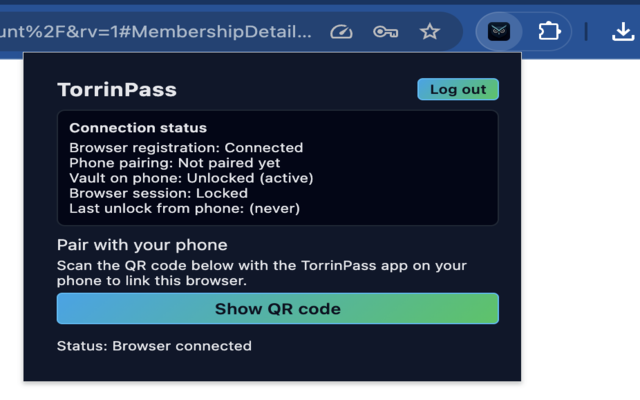
- Log in with your TorrinPass account
Firefox Installation
Section titled “Firefox Installation”- Visit Firefox Add-ons
- Search for TorrinPass and click Add to Firefox
- Grant the requested permissions
- Log in with your TorrinPass account
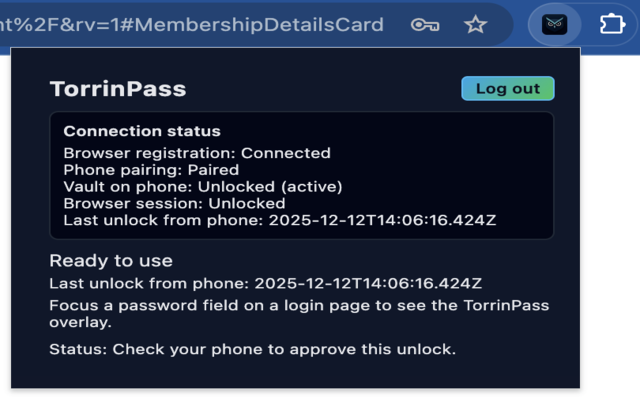
Using the Extension
Section titled “Using the Extension”Autofill a Password
Section titled “Autofill a Password”- Navigate to a login page
- Click the TorrinPass icon in your browser toolbar
- Select the credential (if multiple exist)
- Username and password are filled automatically
Generate a New Password
Section titled “Generate a New Password”- On a signup or password change page
- Click the TorrinPass icon
- Select Generate Password
- Customize settings if needed
- Click Use Password to fill and save
Copy 2FA Code
Section titled “Copy 2FA Code”- After logging in, when prompted for 2FA
- Click the TorrinPass icon
- The current TOTP code is displayed
- Click to copy or autofill
Privacy & Security
Section titled “Privacy & Security”What the Extension Can Access
Section titled “What the Extension Can Access”- ✅ Login form fields (to autofill)
- ✅ Current page URL (to match credentials)
- ❌ Page content or browsing history
- ❌ Other tabs or windows
Master Password Protection
Section titled “Master Password Protection”Your vault is protected by your master password:
- Configurable auto-lock timeout
- Automatic lock when browser closes
- Optional biometric unlock (where supported)
Trust Mode Integration
Section titled “Trust Mode Integration”The extension respects your Trust Mode settings from the iOS app:
- In Filter View: Hidden passwords won’t appear
- In Secure Mode: Deleted passwords aren’t available
- Perfect for travel security
Troubleshooting
Section titled “Troubleshooting”Extension Not Showing
Section titled “Extension Not Showing”Chrome:
- Click the puzzle icon in the toolbar
- Find TorrinPass and click the pin icon
- Try restarting Chrome
Firefox:
- Click the menu (☰) → Add-ons and themes
- Ensure TorrinPass is enabled
- Try restarting Firefox
Credentials Not Matching
Section titled “Credentials Not Matching”- Open TorrinPass app or web vault
- Edit the password entry
- Verify the website URL is correct
- Add alternative URLs if needed
Autofill Not Working
Section titled “Autofill Not Working”Some websites block autofill. Try:
- Click directly in the username field
- Right-click and select TorrinPass from context menu
- Copy/paste from the extension manually
Comparison
Section titled “Comparison”| Feature | TorrinPass | Chrome Built-in | 1Password |
|---|---|---|---|
| Chrome Extension | ✅ | ✅ | ✅ |
| Firefox Extension | ✅ | ❌ | ✅ |
| Built-in 2FA | ✅ | ❌ | ✅ |
| Password Generator | ✅ | ✅ | ✅ |
| Trust Mode | ✅ | ❌ | ❌ |
| Zero-Knowledge | ✅ | ❌ | ✅ |
Get Started
Section titled “Get Started”The browser extensions are included free with TorrinPass. Install the extension for your browser and start autofilling passwords today.