
Trust Mode (Travel Security)
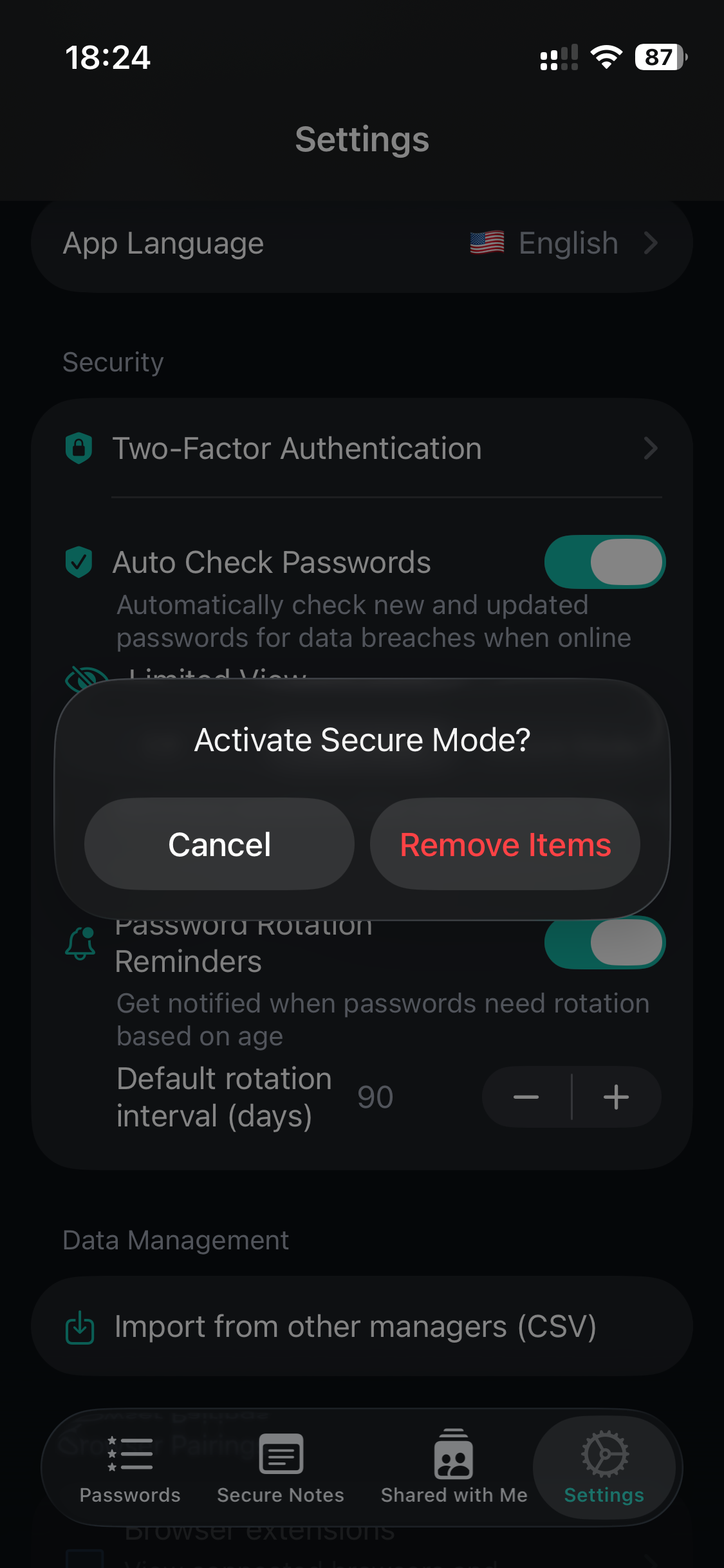
Trust Mode is a powerful security feature designed to protect your most sensitive passwords in high-risk situations—like crossing international borders, traveling through airports, or any scenario where your device might be inspected or accessed by others.
Why Trust Mode?
Section titled “Why Trust Mode?”In many countries, border agents can legally demand access to your unlocked device. Even with biometric protection, you may be compelled to unlock your password manager. Trust Mode ensures that your most sensitive credentials simply aren’t there to be found.
Common Use Cases
Section titled “Common Use Cases”- 🛂 Border crossings — Protect sensitive work or personal credentials
- ✈️ International travel — Minimize exposure during security checks
- 🏢 Corporate travel — Comply with data protection policies
- 👀 Shared environments — Limit what’s visible when others might see your screen
Two Levels of Protection
Section titled “Two Levels of Protection”TorrinPass offers two Trust Mode levels, giving you flexibility based on your security needs:
🔵 Filter View (Soft Mode)
Section titled “🔵 Filter View (Soft Mode)”What it does: Hides passwords from view without deleting them.
- Passwords not on your allow-list are hidden from the password list
- Data remains encrypted on your device
- Instant toggle—no sync required
- Perfect for casual privacy (e.g., someone looking over your shoulder)
Best for: Day-to-day privacy, quick filtering
🔴 Secure Mode (Hard Mode)
Section titled “🔴 Secure Mode (Hard Mode)”What it does: Actually removes passwords from your device.
- Non-allowed passwords are deleted from local storage
- Only allow-listed passwords remain on the device
- Passwords are safely stored in the cloud and can be restored later
- Provides plausible deniability—the data genuinely isn’t on your device
Best for: Border crossings, high-security travel, corporate compliance
How to Use Trust Mode
Section titled “How to Use Trust Mode”Step 1: Build Your Allow-List
Section titled “Step 1: Build Your Allow-List”Before enabling Trust Mode, decide which passwords should remain visible/accessible:
- Open your password list
- Long-press on any password entry
- Tap “Keep on this device” to add it to your allow-list
- Repeat for all passwords you want to keep accessible
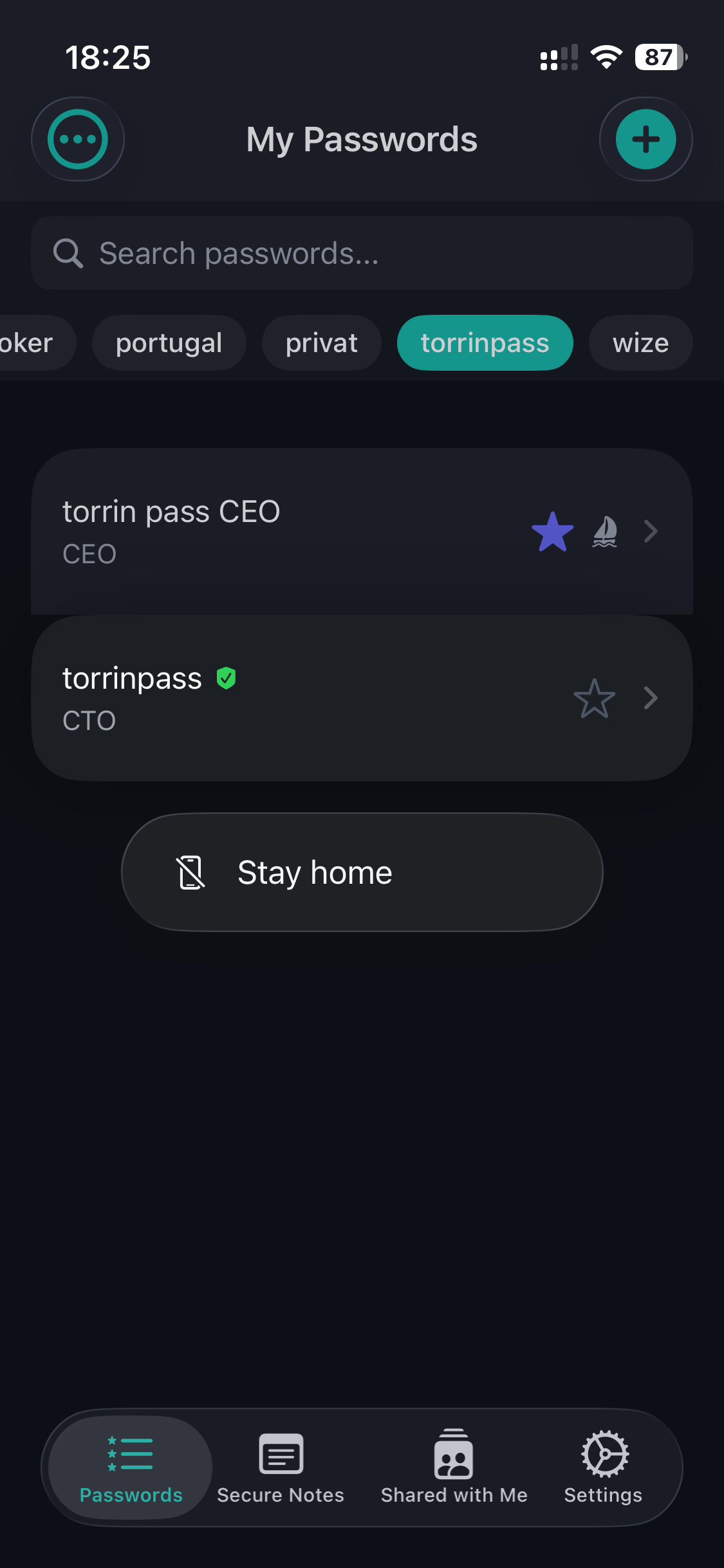
Passwords on the allow-list show normally. Passwords not on the list display a small 🚢 sailboat icon, indicating they’ll be hidden when Trust Mode is active.
Step 2: Enable Trust Mode
Section titled “Step 2: Enable Trust Mode”- Go to Settings
- Find Limited View section
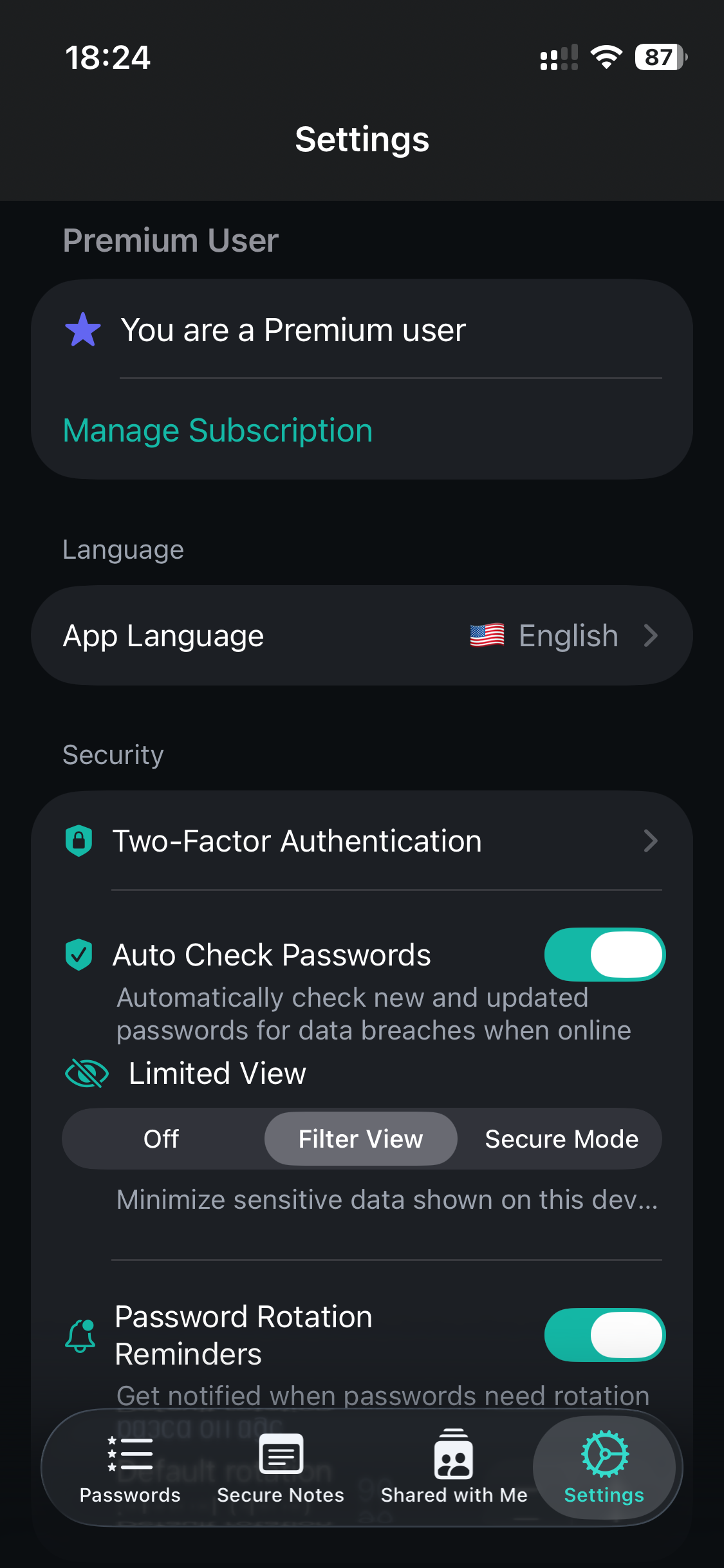
- Choose your protection level:
- Off — Normal operation, all passwords visible
- Filter View — Hide non-allowed passwords (soft mode)
- Secure Mode — Delete non-allowed passwords (hard mode)
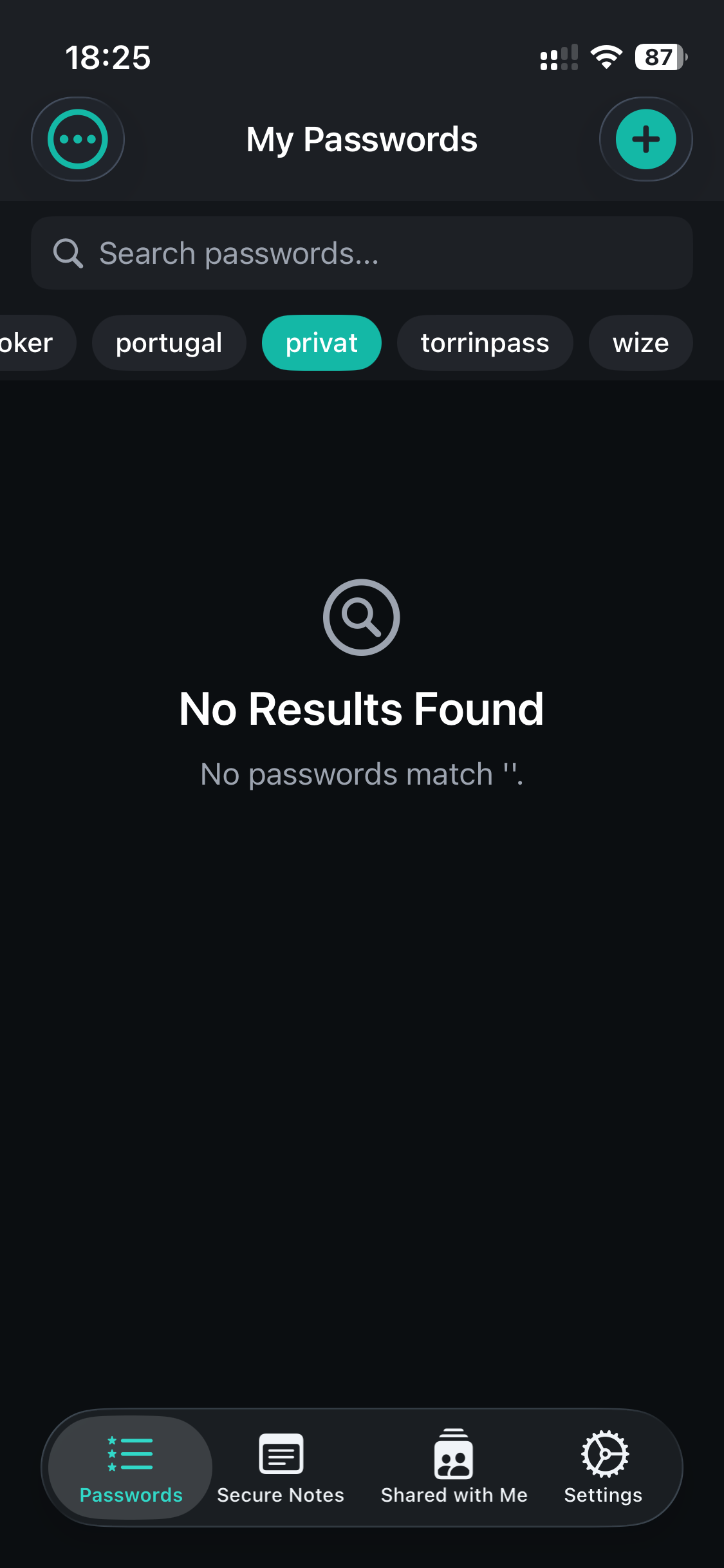
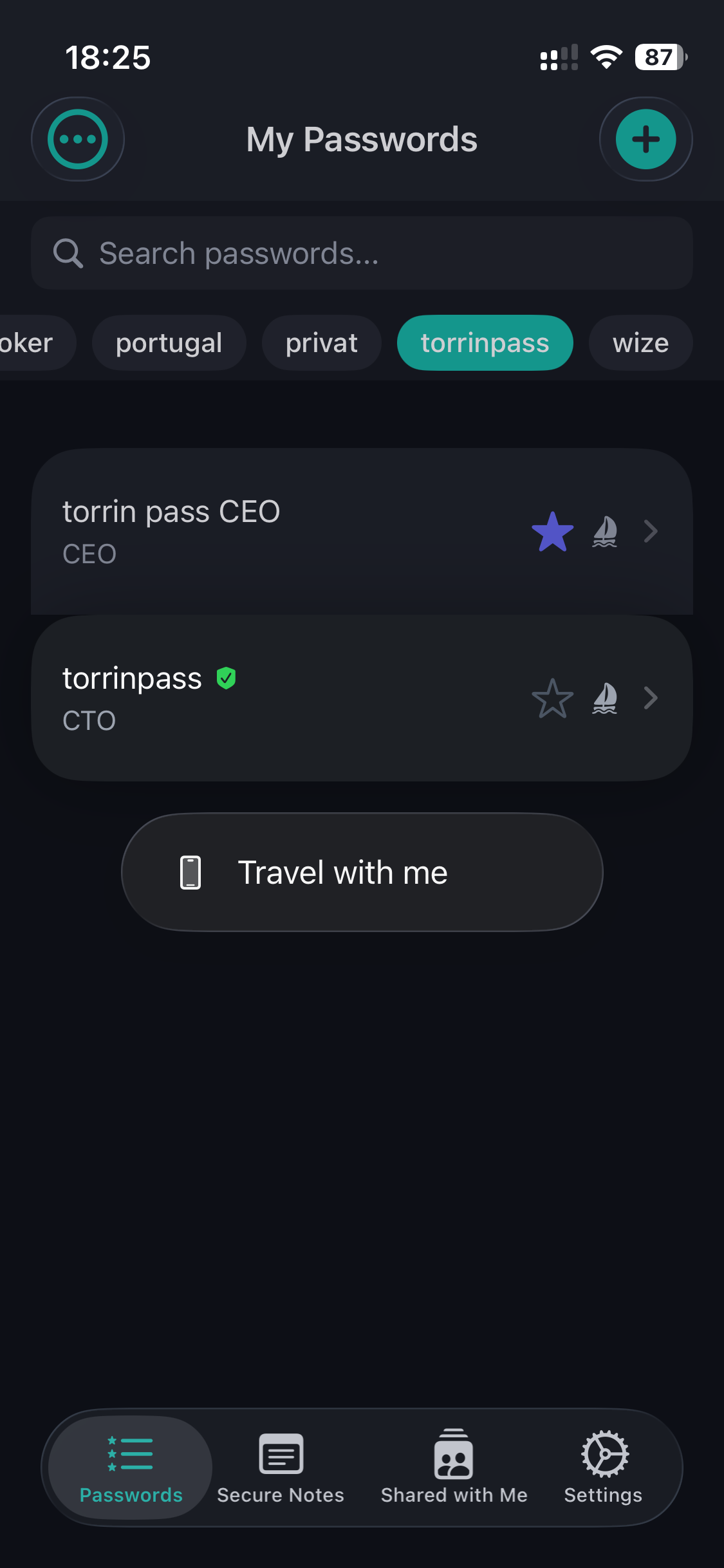
Step 3: Restore Your Passwords (After Travel)
Section titled “Step 3: Restore Your Passwords (After Travel)”When you’re back in a safe environment:
- Go to Settings → Limited View
- Switch from Secure Mode back to Off or Filter View
- TorrinPass will automatically sync and restore all your passwords from the cloud
Security Details
Section titled “Security Details”Allow-List Storage
Section titled “Allow-List Storage”Your allow-list is stored securely in the device Keychain:
- Never synced to the cloud
- Device-specific (each device has its own allow-list)
- Protected by iOS security
What Happens in Secure Mode
Section titled “What Happens in Secure Mode”When you activate Secure Mode:
- All passwords not on your allow-list are deleted from Core Data
- Scheduled notifications for deleted passwords are cancelled
- The deletion is local only—cloud data is untouched
- When you deactivate, a full sync restores everything
Cloud Backup Safety
Section titled “Cloud Backup Safety”Your passwords are always safe in the cloud:
- End-to-end encrypted with your master password
- Zero-knowledge architecture means we can’t access them
- Restoration is automatic when you disable Secure Mode
Best Practices
Section titled “Best Practices”Before Traveling
Section titled “Before Traveling”- ✅ Review your allow-list carefully
- ✅ Test Filter View first to see what will be hidden
- ✅ Ensure cloud sync is complete before enabling Secure Mode
- ✅ Consider what passwords you actually need during travel
Recommended Allow-List Items
Section titled “Recommended Allow-List Items”Keep these accessible during travel:
- Hotel booking confirmations
- Airline accounts
- Travel credit cards
- Emergency contacts
- Local services you’ll need
Consider hiding:
- Banking and financial accounts
- Work credentials
- Social media (if sensitive)
- Cryptocurrency wallets
- Medical records
After Traveling
Section titled “After Traveling”- ✅ Return to a secure network
- ✅ Disable Secure Mode to restore passwords
- ✅ Verify all passwords synced correctly
- ✅ Review if any passwords need updating
Frequently Asked Questions
Section titled “Frequently Asked Questions”Will I lose my passwords permanently?
Section titled “Will I lose my passwords permanently?”No. Your passwords are always safely stored in the cloud with end-to-end encryption. Secure Mode only removes them from your local device. They’re restored automatically when you disable Secure Mode.
Can I use Trust Mode on multiple devices?
Section titled “Can I use Trust Mode on multiple devices?”Yes! Each device has its own independent allow-list. You might keep more passwords accessible on your home iPad while having a minimal set on your travel phone.
What if I forget to add a password to my allow-list?
Section titled “What if I forget to add a password to my allow-list?”If you’re in Filter View (soft mode), the password is still on your device—just hidden. Switch to Off mode to see it again.
If you’re in Secure Mode (hard mode), you’ll need to disable Secure Mode and sync to restore it.
Does Trust Mode affect the browser extension?
Section titled “Does Trust Mode affect the browser extension?”Yes. The browser extension only sees passwords that are on your device. In Secure Mode, hidden passwords won’t be available for autofill until you restore them.
Is my allow-list synced between devices?
Section titled “Is my allow-list synced between devices?”No, intentionally. Your allow-list is device-specific and stored only in the local Keychain. This means you can have different trust configurations on different devices.
Comparison with Competitors
Section titled “Comparison with Competitors”| Feature | TorrinPass | 1Password | Bitwarden |
|---|---|---|---|
| Travel Mode | ✅ Two levels | ✅ Basic | ❌ No |
| Local Deletion | ✅ Secure Mode | ❌ No | ❌ No |
| Per-Device Config | ✅ Yes | ✅ Yes | N/A |
| Automatic Restore | ✅ Yes | ✅ Yes | N/A |
TorrinPass advantage: Our Secure Mode actually deletes data from your device, providing true plausible deniability. Competitors typically only hide data, which forensic tools could potentially recover.